
Connectors and permissions · for your AI
Connectors and permissions
---
id: connectors-and-permissions
title: Connectors and permissions
topic: security
level: 2
builds-on: [what-ai-is, how-a-chat-starts]
modes: [day-pack, rucksack]
moment: "an app asks them to connect an account or allow access, they are on a screen choosing what to allow, or they ask whether their AI can read their email, calendar or files"
keywords: [connector, connected app, connect an account, tool, link your email, link your calendar, link your files, permission, what it can reach, sign in, ask first, approval, always allow, disconnect, linked apps, Gmail, Google Calendar, Google Drive, GitHub]
related: [what-ai-is, how-a-chat-starts]
checked: 2026-10-19
---
What it is
Your AI app can be linked to other accounts you use, so it can bring your emails, calendar events or files into a chat when you ask.
Each link to one account is called a connector, though apps call them different names. A connector has a few tools, each one action the app can take in that account, such as finding a day's events or adding an event.
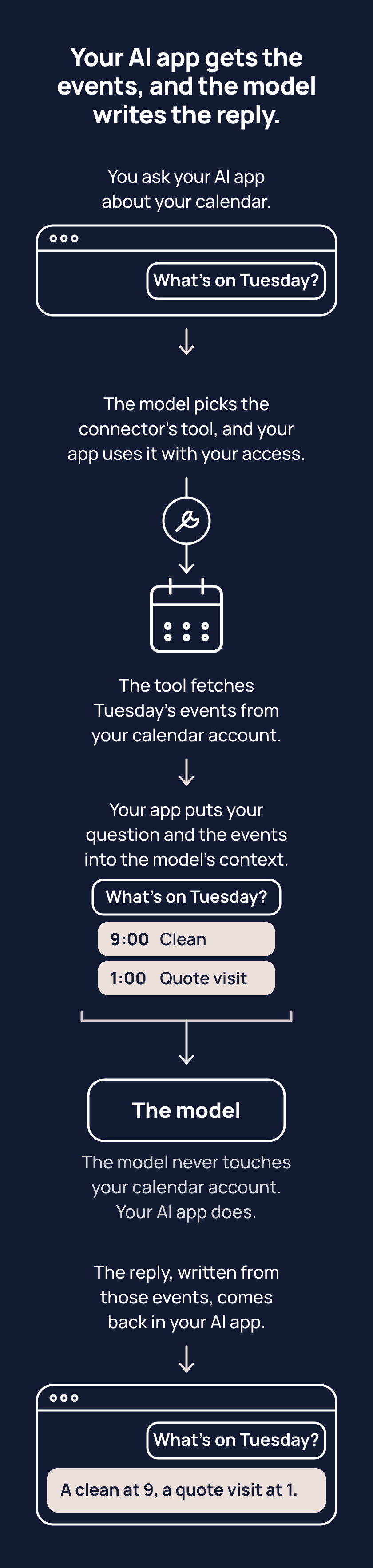
Say you ask what's on your calendar on Tuesday. The model can't reach your calendar, but your app told it the connector's tools, so it picks the one for finding a day's events.
Your AI app uses that tool with the access you gave when you connected your calendar, and the tool fetches Tuesday's events. The app puts them in front of the model with your question, as context. The model writes its reply from that.
The model never touches your calendar account; the app does, through the connector, when a request needs it.
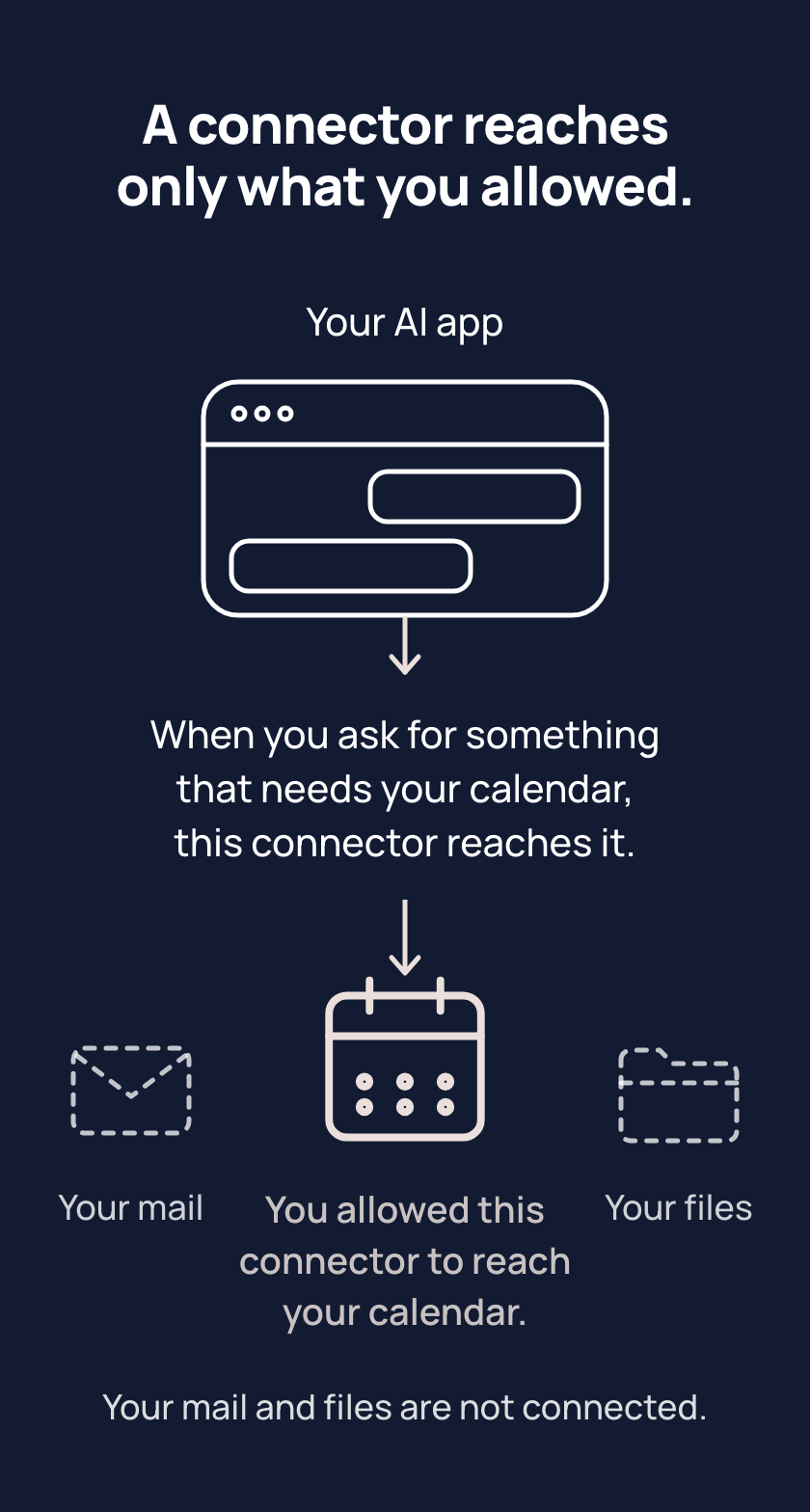
To connect an account, you sign in on that account's own page, usually in your browser, rather than typing the account's password into your AI app. Then a screen shows what your AI app wants to reach, and you choose what to allow, such as your calendar but not your email.
That choice is called a permission. A connector reaches only what your own account can, and only what you allowed. A permission is like a hotel key card that opens only the doors it was set for and can be cancelled.
Some tools only read; others can also make changes, such as sending an email. Many apps can ask you before a change, and you choose whether the app asks every time. Asking first doesn't narrow what the connector reaches; it adds your yes or no.
You can disconnect a connector in your app's settings or in the account's own list of linked apps, which stops new access but doesn't erase what's already in your chats or memory.
Tips
- When you connect an account, pick the narrowest choice that does the job, such as your calendar but not your email, because a connector reaches only what you allow.
- When you add a connector that can make changes, turn on asking first if your app offers it, because you can then stop an unexpected change without disconnecting it.
Try it
- Go to your AI app's settings and find its list of connectors.
- If there is one, pick a connector and look at what it may reach.
- Check whether your AI app asks you before that connector's tools make a change.
You'll see what the connector reaches and whether your app asks first, or an empty list if nothing is linked. Either way, that list is every link your AI app has to your other accounts.
Risks
- You allow everything the screen offers when connecting an account, and the connector reaches your email and files when only your calendar was wanted. Choose the narrowest option, such as your calendar alone. A connector reaches only what you allowed, nothing you left out.
- The model picks a tool that makes a change, such as sending an email, and your AI app runs the tool without asking you. Turn on asking first for any connector whose tools make changes, so your app checks with you before each change.
- You disconnect a connector, and what the connector brought into your chats and your app's memory stays there. Delete a chat if the connector brought in things you would rather not keep, and delete the notes the connector left in the memory section of your app's settings.
- A setup screen in an app asks you to connect an account, and you connect without knowing what the connector fetches. Connect only once you can say what the connector will fetch; if you already did, disconnect it.
Why it matters
The model never touches your account, so from your account it sees only what a tool fetched. Linking an account is useful on your terms, because you decide what the connector reaches, whether your AI app asks first, and whether the connector stays connected.
Related concepts
Outcomes
- connectors-and-permissions-1 (Staying safe, waypoint 2): I can say what one connector of mine can reach, and whether my AI app asks before it changes anything. Proves: they open that connector's settings in their AI app, name what it reaches and how it asks, and the screen agrees. Someone with no connector proves it by connecting one account they would really use, choosing the narrowest option offered, and naming it the same way.
- connectors-and-permissions-2 (Staying safe, waypoint 2): I can narrow or remove a connector's access. Proves: they change one connector's asking setting, narrow what it reaches, or disconnect it, in the AI app or in the account's own list of linked apps, and say what changed.
What success looks like
Before they connect anything, they ask three things: what will this reach, will it ask first, and how do I cut it off? Now and then they look at their list of connections and remove what they no longer use.
Fast track
- Explains: a connector lets their AI app reach another account (email, files, a calendar) through its tools; what it reaches and whether it asks before changing anything are set when it is connected, and can be narrowed or removed later.
- Ask: "You're about to connect your email to your AI app. What do you check first?" Shows it: what it will reach, whether it asks before it changes or sends anything, and how to cut it off.
- Ask: "You stopped using a connector months ago. What do you do, and where?" Shows it: remove or disconnect it, in the AI app or in the other account's own list of linked apps, because access left on is still access.
Ways to teach it
- Explain. First the path, on their own example (they ask; the model picks the connector's tool; the app fetches with their access; the result joins the context). Then the three controls in the order they meet them: what the connector reaches, whether the app asks first, whether it stays connected. The hotel key card fits reach and cancelling only; keep it there.
- Experiment. In an app with a per-chat switch, turn a connector off for this chat, ask something that needs it, turn it back on, ask again, and choose to allow once: connected, used and asked are three different things. In an app without that switch, open the app's list of connections beside the account's own list of linked apps and compare; remove nothing unless they want to.
- Quiz. Three questions on their own apps: does "always ask" stop it reaching your files (no: asking is not access); you signed in but it cannot see the repository, so what is missing (choosing what it may reach, such as installing it on that repository); which approval would you pick for sending an email, and where do you change it later.
- Cards. Four: a connector (a link to one account that gives the app a few tools there, each one action); reach (only what your account can, and what you allowed); asking first (a check, not a lock); cutting it off (in the app, and in the account).
- Challenge. Next time an app offers to connect an account, say what it will reach before allowing it, and pick the narrowest option; afterwards, set how it asks.
- Project (Rucksack). The Rucksack's GitHub connection was installed on the Rucksack and nothing else. Find that setting in GitHub, read it, and tighten it if anything else is listed.
Watch out
- The Risks on the human page are general, so the page stands alone. The person's own case is yours to say: a Daypack needs no connector at all, so when a Daypack person is asked by any setup screen to connect an account, say so and ask what the connector would fetch for them; a Rucksack's apps may need one, and then the narrowest choice that does the job.
- The names differ by app: apps inside plugins in ChatGPT, connectors in Claude and Copilot, connected apps in Gemini. Use "connector" and say "apps call them different names"; give an app's label only when the person is looking at that app. (checked 18 October 2026)
- Asking first does not remove access, and turning a connector off for one chat does not disconnect it. (checked 18 October 2026)
- Disconnecting stops new access; what is already in chats, and in ChatGPT's memory, stays. (checked 18 October 2026)
- "Always allow" is narrower than it looks: in ChatGPT it covers personal accounts only and never actions that need extra review. (checked 18 October 2026)
- Plans differ, and several plan details are unconfirmed (free-plan Gmail in ChatGPT, Claude's Google connectors on Free, a free Microsoft account in Copilot). Name no plan; point at what is on their screen. (checked 18 October 2026)
- Two vendor conflicts, for the next re-check, not for teaching: Anthropic's support article and docs disagree on who can use the Google connectors and whether they can send; OpenAI's help says its GitHub app reads only, while a 15 October test saw saves through it.
- The overcorrection to correct is "never connect anything": teach the least access that does the job, not none.
- Text a connector brings in can try to steer the model; name it as a separate idea rather than teaching it here.
Questions people ask
- Q: If I connect my email, can my AI read all of it? A: It can reach whatever you allowed, which for email is usually the whole mailbox, and the app uses it when a request needs it. If you only need your calendar, connect that and leave your email out.
- Q: Can I let it read my email but never send anything? A: Some apps let you allow reading only or switch off the sending tool, and others can ask you before each change. Asking first adds your yes or no, but it does not narrow what the connector can reach.
- Q: If it asks me first, is it still connected? A: Yes, because asking first and turning a connector off for one chat do not disconnect it. To cut it off, disconnect it in your app's settings or in the account's own list of linked apps.
- Q: If I disconnect a connector, does it forget what it saw? A: No, disconnecting stops new access but what the connector already brought into your chats or your app's memory stays. Delete those chats, and the notes it left, if you do not want them kept.
For your AI
Facts (checked 18 October 2026; sources in research/2026-10-18-concepts/connectors-and-permissions.md, section 1). A connector is a signed-in link from the AI app to one account, used on demand as that person. It gives the app a few tools (each one action, such as finding a day's events or adding one); the app lists them to the model, the model picks one when a request needs it, the app runs it with the person's access, and the app puts the result in the context; the model never reaches the account itself (the MCP tool flow: model picks, client calls, server answers). Three controls exist: what the link reaches, whether the app asks first, whether the link exists. A connector mirrors the account's own permissions, so it reaches nothing the person cannot. ChatGPT: apps inside plugins (renamed 18 Dec 2025 and 9 Jul 2026), Settings, then Plugins; per-app levels Always ask, Allow read actions, Allow low-risk actions (the default; it reads without asking), Allow all actions; approval choices Deny, Allow once, Allow low-risk actions, Always allow (https://help.openai.com/articles/20001495 ; https://help.openai.com/articles/20001494). Claude: Customize, then Connectors; Allow once or Always allow in a chat; per tool Always allow, Needs approval or Blocked; Disconnect or Remove (https://claude.com/docs/connectors/getting-started). Gemini: connected apps on the Connectors page under Customize; Disconnect from More options (https://support.google.com/gemini/answer/13695044). Copilot: Profile, then Connectors, with a per-conversation switch; disconnect steps not described on the help page (https://support.microsoft.com/en-us/microsoft-copilot/connecting-microsoft-copilot-to-other-services). GitHub has two steps, authorise and install on chosen repositories (https://docs.github.com/en/apps/using-github-apps/authorizing-github-apps). A private repository it cannot reach is hidden or answers 404, usually because the install step or an organisation approval is missing; ChatGPT's help also notes a delay of about five minutes (https://docs.github.com/en/rest/using-the-rest-api/troubleshooting-the-rest-api ; https://help.openai.com/articles/11145903). Choosing within an account (one repository rather than all) is documented for GitHub; Google's Gmail, Calendar and Drive connect as separate connectors with no folder-level choice (https://support.claude.com/en/articles/10166901-use-google-workspace-connectors).
Questions people ask. "Can it read everything?" No: only what the account can and what they allowed, and only when a request needs it, unless they set up a task that runs on its own. "Read but never send?" ChatGPT: Allow read actions (it reads freely and asks before any change); Claude: Blocked for the send tool, the only true never. "How do I take it back?" Disconnect in the app, and remove it from the account's list of linked apps (Google: https://support.google.com/accounts/answer/13533235); what is already in chats stays. "Is my data used for training?" It depends on the app and the person's settings; show them the setting rather than answering from memory (research note, section 5). "I can't see a connector." Plan, region, workspace, role, model or device can hide it (https://help.openai.com/articles/20001497).
Do: name the setting for their app and their screen; say "asking is not access"; send them to the account's own list of linked apps as well as the app's; keep to the least access that does the job.
An example of this taught well, in passing, when a connect screen appears: "Before you tap Allow: this lets me reach your calendar, and only what your account can see there. Pick the narrowest option on the screen, then decide whether I should ask before I add anything. You can disconnect it later in settings."